
Civil 3D Pipe Labels with Flow Direction
One of the best things about Civil 3D is the ability to add dynamic labels to your objects. When it comes to Pipe Networks, you will typically need to add pipe labels and structure labels. In plan view, many companies like to show the flow direction of the pipe by using a symbol along with their label. (shown below) In this blog, I will describe how to create a dynamic pipe label that points in the correct flow direction.

Adding Pipe Network Labels
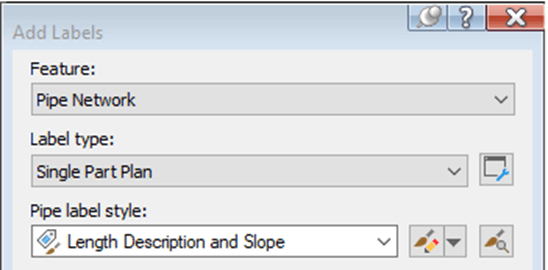
In this example, we will start with the Autodesk Civil 3D (Imperial) NCS template. We will also assume that you have already created a pipe network. On the Annotate Tab of the ribbon, click the add label dropdown. Go to Pipe Network > Add Pipe Network Labels. In the window below, choose the pipe label style called “Length Description and Slope”.
Editing Label Styles
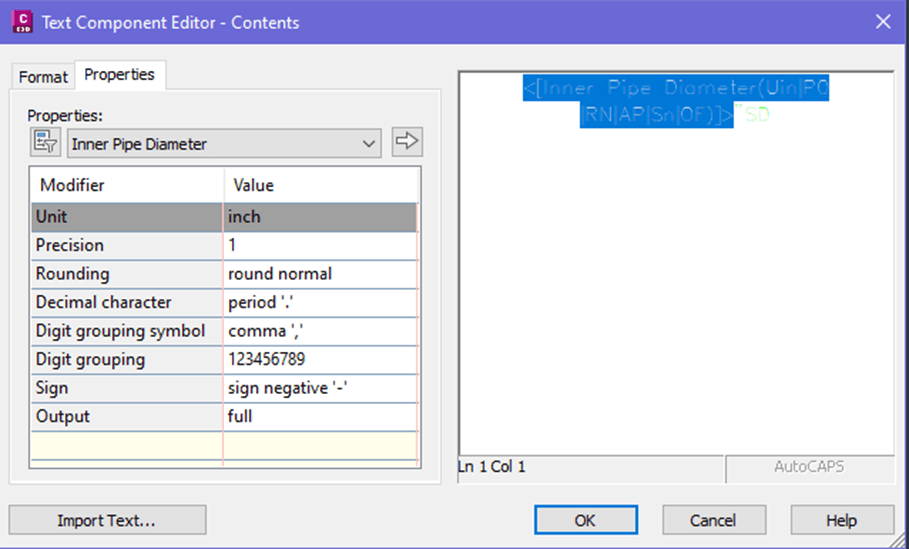
Next, use the edit label style dropdown to select “Copy Current Selection”. In the label style composer window, information tab, rename the style “SD Pipe Size & Direction”. On the layout tab, click the value next to the Text Contents. This will open the “Text Component Editor”.

Delete the Code on the right side of the window. On the Properties tab, select “Inner Pipe Diameter” from the drop-down menu at top. Match settings shown below, then use the arrow to generate the code on the right. Manually type “SD after the code. Click OK. This completes the text portion of the label style.
Editing Flow Direction
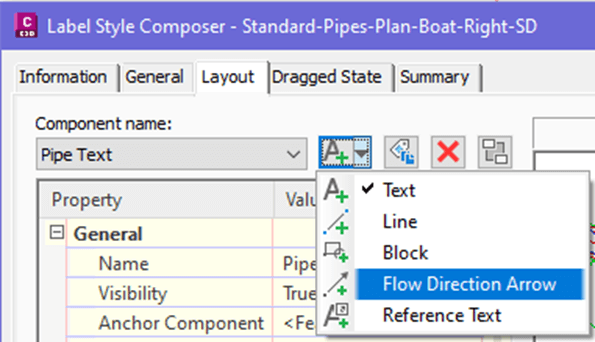
Next, we need to work on the flow direction. Back in the Label Style Composer, Layout Tab, use the create a component dropdown and select Flow Direction Arrow. Match settings show below.

Creating Block Component
Now we need to create a component for the block that will be attached to the Flow Direction Arrow. Click dropdown to create a block component.
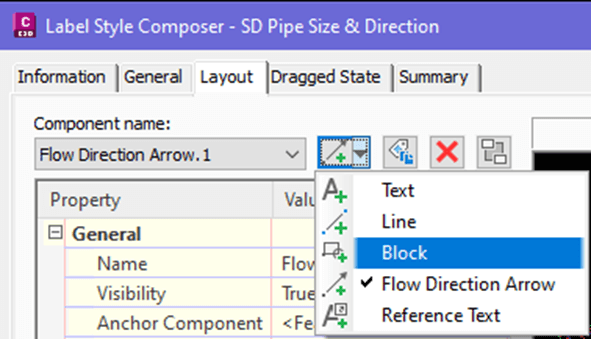
Name the component “Boat”. Change the Anchor Component to “Flow Direction Arrow.1”. For the Block Name, browse and select the desired block. (Ours is called Boat-Right.) For the attachment point, choose Middle Center.

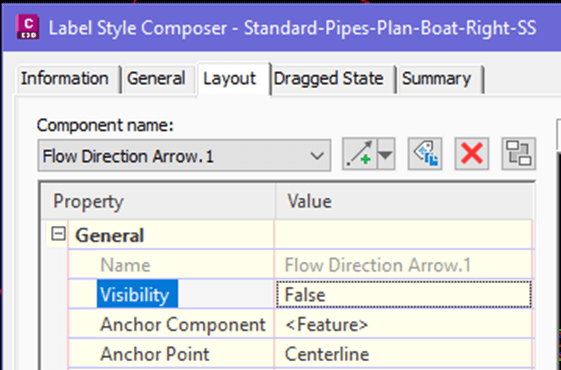
Now that the Block is attached to the Direction Arrow, we can go back to the Flow Direction Arrow.1 component and set the Visibility to False.
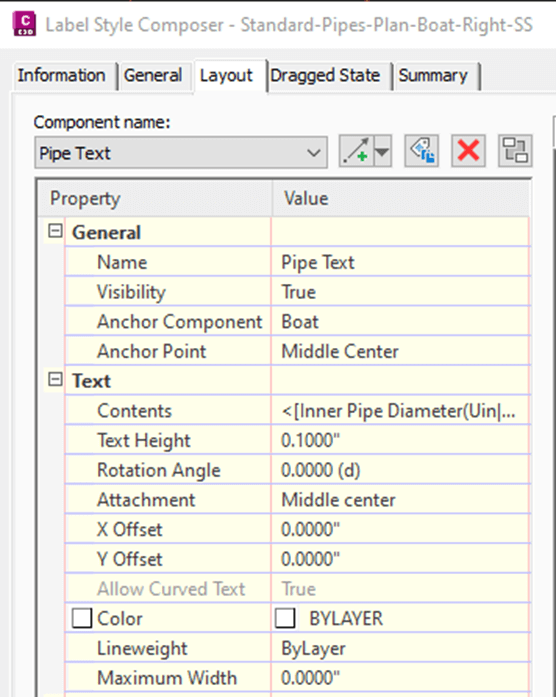
Also, make sure that the Pipe Text component is attached to the Boat component. Anchor Point is Middle Center. Attachment is also Middle Center.
Summary
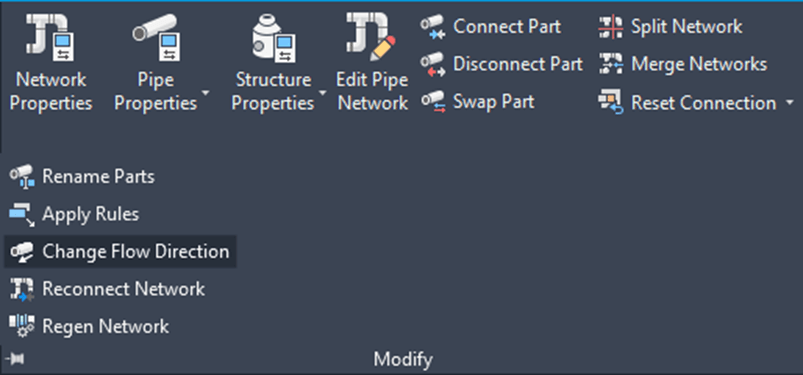
In summary, the flow direction is attached to the feature. The boat block is attached to the flow direction, and the pipe text is centered on the boat component. Now the boat symbol should aways point in the direction that the pipe flows. To test your label, you can select your pipe, go to the modify panel dropdown menu in the ribbon, and click “change flow direction”. Your boat label should switch directions!
CAD Masters Civil 3D Advanced Pipe Modeling Training Classes
If you are interested in a more comprehensive look at Civil 3D Pipe Modeling, CAD Masters offers a one-day class that covers all things Civil 3D Pipes. From creating pipe and pressure networks in plan and profile views to understanding labels and styles, our course provides hands-on guidance through every step of the process.
Our experienced instructors will guide you through real-world examples, equipping you with the knowledge and techniques needed to tackle complex pipe modeling projects with confidence. Enhance your proficiency in analyzing flow, sizing pipes, and designing efficient pipe networks using Civil 3D.
Topics Include:
- Gravity pipe parts list and rules for design.
- Pipe layout techniques and editing.
- Pressure pipes parts list with catalogs.
- Pressure pipes layout techniques.
- Preparation for exporting geometry to Storms and Sewer or Storm & Sanitary Sewer Analysis (Note: Using the SSA software and Hydraflow Extensions are not included in this course.)
Classes are available in live, instructor-led online format as well as in-person classes in our Walnut Creek, CA and Sacramento, CA Autodesk Authorized Training Centers
Great explanation—thanks for breaking down the steps in such a clear way! The part about creating a dynamic pipe label with the flow direction tied to a custom block (“Boat”) is especially helpful since it can be tricky to get those annotations to behave as expected in Civil 3D. The tip about testing the label by switching flow direction is a smart way to confirm everything is set up right. Appreciate the practical walkthrough—this is definitely getting bookmarked!