
How to Pin and Control Civil 3D Structure Labels: A Step-by-Step Guide
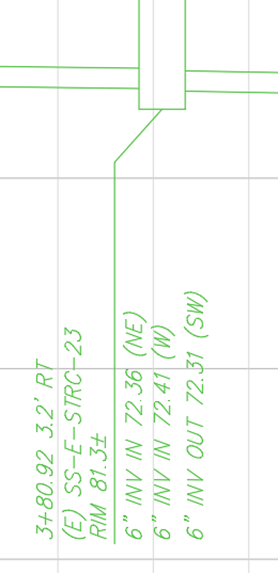
Civil 3D users often encounter challenges when trying to maintain precise control over structure label leader locations. Civil 3D’s default behavior can sometimes lead to leaders pointing to undesired points, like the structure’s center. This guide breaks down the process of pinning Civil 3D structure leaders to a desired location, ensuring your drawings remain accurate and clear.
Understanding the Challenge
When dragging Civil 3D structure labels, the leader often defaults to pointing at the structure’s center. This can be problematic when you need the leader to point to a specific edge or feature of the structure.
Why Precise Label Placement Matters
Accurate label positioning isn’t just about aesthetics – it’s about:
- Ensuring clear communication of critical design details
- Maintaining professional drawing standards
- Preventing misinterpretation of structural elements
- Saving time during design reviews and client presentations
The Solution: Utilizing the “Toggle Label Pin” Feature
Step 1: Select the Label
Begin by selecting the structure label you wish to modify.
Step 2: Initiate Dragging
- Click on the label’s drag grip and begin dragging the label to your desired location.
- While dragging, pay close attention to the leader’s attachment point.
Step 3: Position the Attachment Point
- Carefully position the attachment point at the exact location on the structure where you want it to stay.
- Once the end of the leader is in the correct location, click to place the label.
Step 4: Position the Attachment Point

- Navigate to the contextual ribbon.
- Locate and activate the “Toggle Label Pin” feature. This action “pins” the end of the label leader, ensuring its position remains fixed.
Step 5: Add Leader Vertex (if needed)
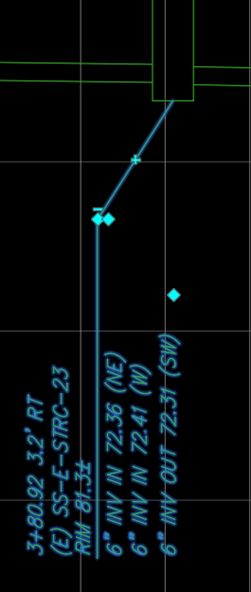
- After pinning the label, you may need to add a vertex to the leader to refine its shape and path.
- Click on the plus grip of the leader to add a vertex, and then adjust the vertex as needed.
Step 6: Finalize Leader Placement
- Make any final adjustments to the leader’s position and appearance.
- If there are extra leader grips that are not needed, those can be removed.
Step 7: Verify Results
To ensure the leader is locked correctly, make a change to the structure location, and then preform a regen. This will display that the label stays in the pinned location, while the leader remains attached to the structure.
Key Considerations
- The “Toggle Label Pin” feature is crucial for locking the end of the label leader.
- Adding leader vertices allows for fine-tuning the leader’s path.
- By following these steps, you can effectively lock Civil 3D structure leaders to any desired location, enhancing the clarity and accuracy of your drawings.
Civil 3D Classes with CAD Masters
Unlock your full potential with CAD Masters’ Professional Civil 3D Training!
Why Choose CAD Masters?
- Expert Instructors: Learn directly from Autodesk Certified Professional Engineers and Engineers in Training
- Comprehensive Support: Includes 90 days of FREE technical support
- Lifetime Learning: Permanent access to digital training materials and video resources
- Hands-On Curriculum: Go beyond tips and tricks – master real-world design techniques
Don’t Just Read About Civil 3D – Master It!
Explore CAD Masters Civil 3D Courses ➔
Transform your technical skills. Elevate your engineering career.