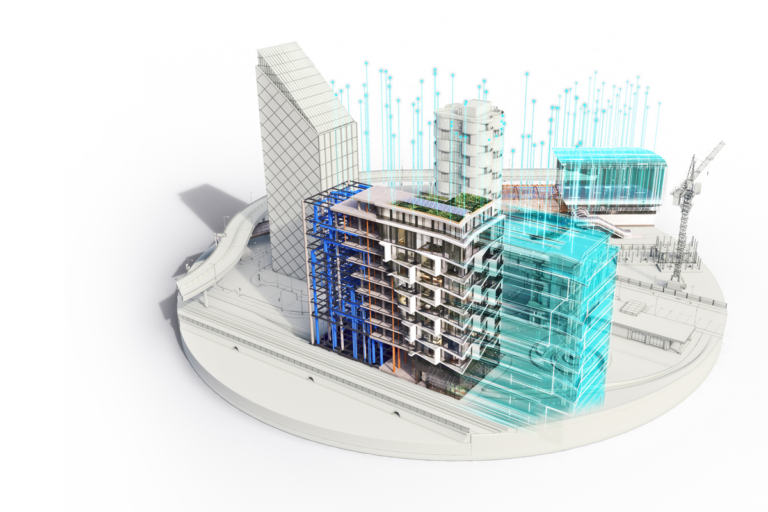
Mastering Revit Toposolids: Elevate Your Site Designs
Are you looking to bring your architectural designs to life with stunning exterior site features? Look no further than Revit’s powerful Toposolid feature. In Revit, you can create a toposolid and assign it different materials such as grass, concrete, or earth. You can add landscaping features such as trees and shrubs. You can add people and cars to your site as well. In this comprehensive guide, we’ll walk you through everything you need to know about creating and manipulating Toposolids in Revit, from basic creation methods to advanced techniques for realistic site modeling.
What Are Toposolids and Why Are They Important?
Toposolids in Revit are 3D representations of terrain that allow architects and designers to create realistic site models. They’re essential for:
- Visualizing the landscape surrounding your building
- Creating accurate site plans
- Performing site analysis
- Enhancing presentations to clients
By mastering Toposolids, you’ll be able to create more compelling and accurate architectural designs that truly showcase your vision.
Creating Toposolids: Three Powerful Methods
There are three major ways to create a toposolid in Revit. You can use elevations from a CAD drawing, you can import points from a .CSV file, or you can create a surface by sketching the boundary and manipulating elevations.
To create a toposolid for your site, go to:
Massing & Site > Model Site > Toposolid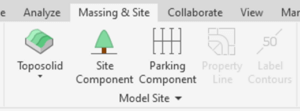
Method 1: Using Elevations from CAD Drawings
This method is perfect for when you have existing site data in CAD format.
Note: Your CAD drawing must have polylines with elevation data for the best results.
- Link your CAD file to your Revit project.
- Navigate to the
Massing & Site tab > Toposolid dropdown > Create from Import. - In the ribbon, choose Create from CAD.
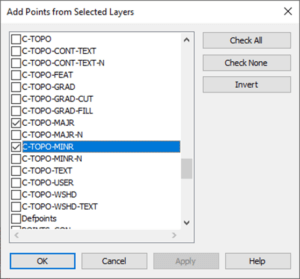
- Select your linked CAD file and choose the contour layers.
Method 2: Importing Points from a CSV File
For those working with survey data or GIS information, this method streamlines the process:
- Prepare your CSV file with X, Y, and Z coordinates.
- In Revit, go to
Massing & Site tab > Toposolid dropdown > Create from Import. - Choose Create from Points File and select your CSV.
- Map the columns to the appropriate coordinates.
- Adjust settings like units and coordinate system as needed.
Method 3: Create from Sketch
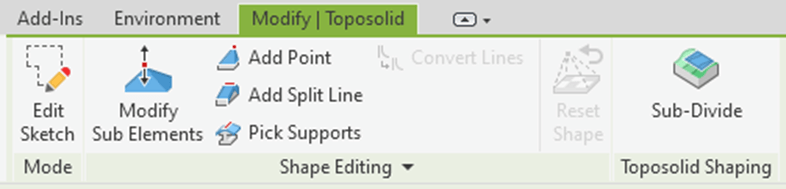
If you choose “Create from Sketch”, the following tools will appear.
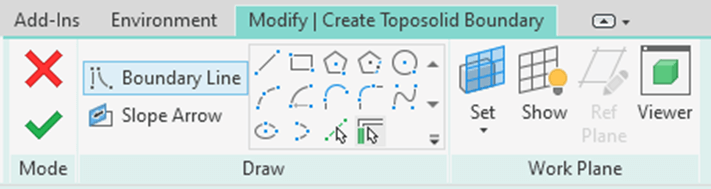
This method offers the most flexibility for custom designs:
Go to Massing & Site tab > Toposolid dropdown > Create from Sketch.- Use the drawing tools to sketch your site’s boundary.
- Click the green checkmark to finish.
- With the Toposolid selected, use the ribbon tools to:
- Add points
- Add split lines
- Modify elevations
Tip: Think of editing a Toposolid like working with a giant, malleable flooring element.
Advanced Toposolid Sketching Techniques
Creating Sub-Regions for Realistic Materials
In most cases, you will want to divide your toposolid into sub regions so that you can apply different materials to different parts of your project site. For example, you may want to create a subregion for the driveway so that you can assign it concrete material. You may want some areas of the yard to be grass and some areas to be dirt.
- Select your Toposolid.
- Click the Sub-Divide button in the ribbon.
- Draw closed boundaries around different site areas (e.g., driveway, grass, landscaping).
- Assign materials to each sub-region through the Properties window.
Assigning & Controlling Toposolid Thickness
When using a Toposolid, you must assign it a thickness. The thickness is controlled by the Toposolid Type. To edit:
- Select your Toposolid.
- In the Properties window, click Edit Type.
- Next to Structure, click Edit.
- In the Edit Assembly window, add or remove layers as needed (similar to walls and flooring).

Creating Underground Levels with Void Forms
One of the benefits of a solid ground surface is that you can cut into the ground using a solid void. This enables you to show the underground levels of your building design.
- On the Massing and Site tab, use In-Place Mass to sketch your building footprint.
- Select the outline and click
Create Form > Void Form. - Manipulate the void form using the gizmo tool (3D view recommended).
- From the
Modify tab > Geometry panel, click "Cut > Cut Geometry. - Select the Toposolid, then the void.
- Switch Visual Style to Consistent Colors to see the result.
- Click Finish Mass in the ribbon.

Fine-Tuning Contour Display
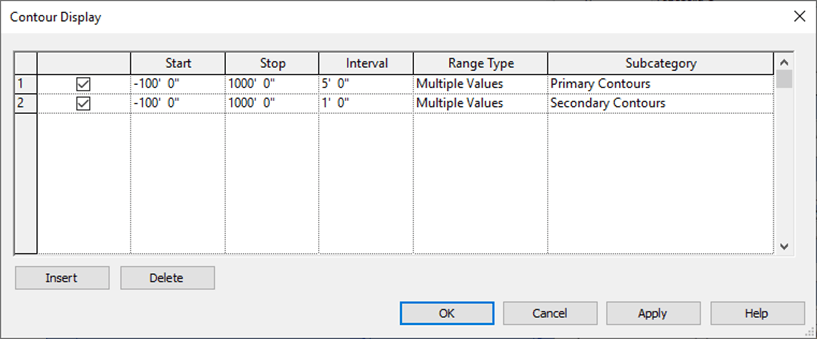
To edit the contour display of your toposolid, select the toposolid and click Edit Type in the properties window. Next, click Edit next to Contour Display.

In the Contour Display window, you will be able to select which contours are displayed, the start and stop range, and contour intervals.
Conclusion: Elevate Your Architectural Designs with Toposolids
Mastering Revit Toposolids is a game-changer for architects and designers. By following this guide, you’ll be able to create stunning, realistic site models that will impress clients and bring your visions to life. Remember, practice makes perfect – so start experimenting with Toposolids in your next project!
Have questions about using Toposolids in Revit? Leave a comment below, and we’ll be happy to help you take your site design skills to new heights! CAD Masters also offers award-winning Revit Training which covers toposolids along with many other topics