
Design with Autodesk in the Cloud
The world of design and construction is always evolving, and the cloud is rapidly becoming an indispensable tool for architects, engineers, and designers. With Autodesk’s integrated solutions, bringing your AutoCAD and Revit projects to the cloud isn’t just a possibility, it’s a gateway to enhanced collaboration, flexibility, and efficiency.
Imagine working on a critical design file from your home office, reviewing it with a colleague across the globe, and then making final tweaks on your tablet while on site. This flexibility is now a reality thanks to a suite of powerful Autodesk tools.
Your Cloud Toolkit
To unlock these capabilities, you’ll need a few key subscriptions:
- AutoCAD / Civil 3D / Revit (2020.2 or newer): Your essential design software, updated to work seamlessly with cloud environments.
- Forma Data Management (formerly Autodesk Docs): The central hub for all your project data, providing secure cloud storage.
- Forma Design Collaboration (formerly BIM Collaborate Pro): This acts as the crucial link, connecting your design software directly to the cloud.
These three components work in harmony to give you the ultimate benefit: the ability to work on design files from anywhere—home, office, or on the go.
Autodesk Forma
At the heart of this cloud ecosystem is the Autodesk Forma website (acc.autodesk.com). This platform unifies all its offerings by leveraging Forma Data Management as the common data environment. Think of it as your project’s home base, where centralized file management creates integrated workflows throughout the entire project lifecycle.
Setting Up Your Cloud Project:
- Access Autodesk Forma: Navigate to acc.autodesk.com.
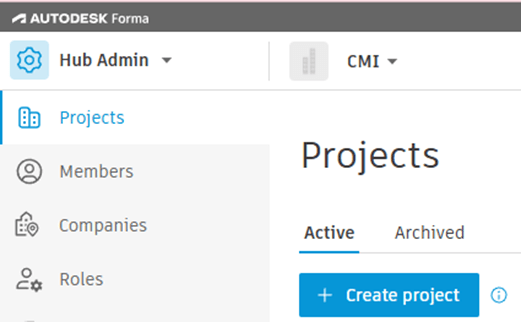
- Create Your Project: In the Account Admin Hub, select “Create project”. Here you can give your project a name and fill out other project info.
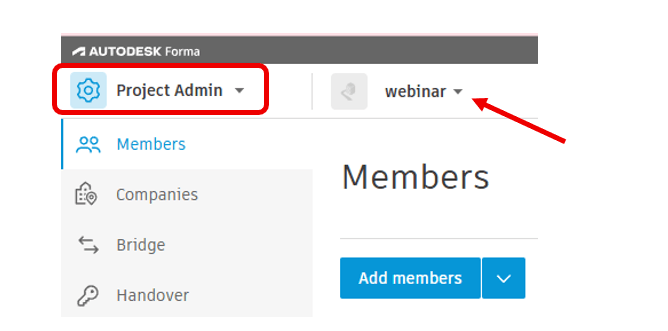
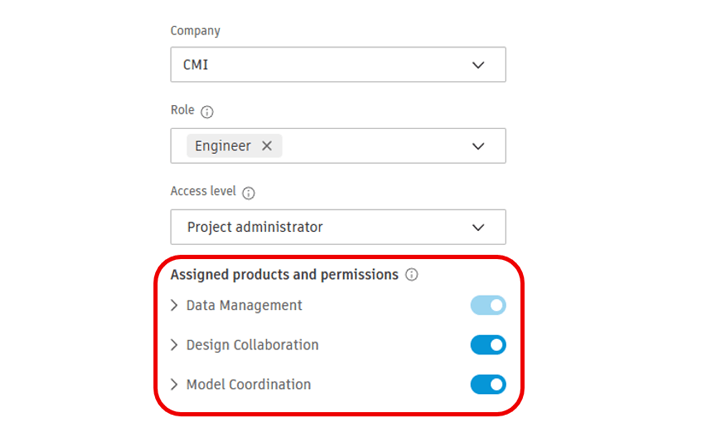
- Add Team & Access: At the top of the website, you can select your project (i.e. “webinar”). Under Project Admin, you will be able to add team members and grant them access to the necessary products: Data Management, Design Collaboration, and Model Coordination.
- View your Projects: In the upper-left corner, select “Data Management”. This should take you to your project files. Here you can set up your file structure for the project.
Organizing Your Files
Under “Data Management”, inside your selected project, navigate to “Files” on the left side of the website. You will see the “Project Files” folder on the right. Next, right-click on “Project Files” folder to add subfolders.
For Example, I have created subfolders for:
- Base Files – For all CAD files, including external references.
- Sheet Set – For .dst files and templates.
- Sheets – For saved PDF outputs.
- Upload Files: Simply drag and drop your files into their respective subfolders.
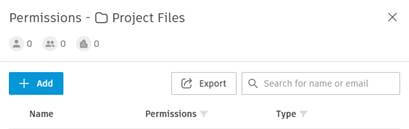
- Manage Permissions: Right click on a folder and choose “permissions”. Add specific members or entire companies to a folder. Select the desired level of access.
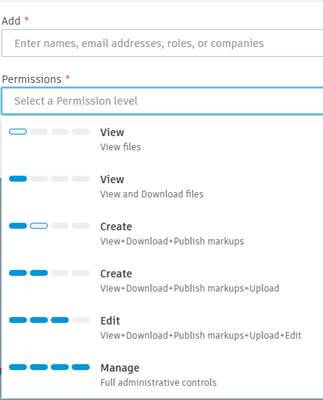
Seamless Local-to-Cloud Connection: Desktop Connector
How do your local files talk to the cloud? That’s where Desktop Connector comes in. This desktop program creates a virtual drive, acting as a bridge between your local file system and the data stored in Forma Data Management. It intelligently manages the connection between your cloud-saved files and their cached local versions.
Getting Started with Desktop Connector:
- Install: Download and install Desktop Connector to see your Autodesk Docs projects directly in your file browser.
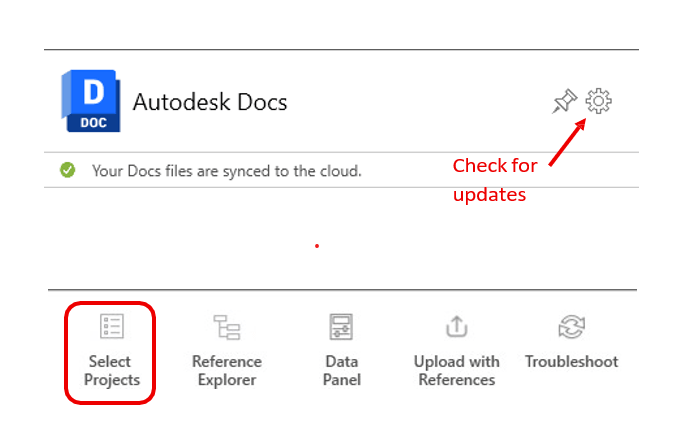
- Select Projects: Within Desktop Connector, choose which cloud projects you want to appear in your local file browser.
- Stay Updated: Periodically check the settings for any available updates to ensure optimal performance.
AutoCAD in the Cloud
Working with AutoCAD files in the cloud introduces some powerful advantages:
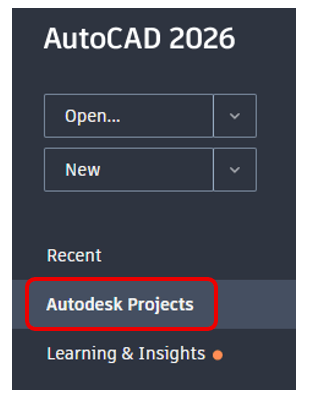
- Opening Files: Launch files directly from the “Autodesk Projects” section on your AutoCAD start tab. when a file is open, it’s automatically locked in the cloud, preventing simultaneous edits, though others can open a Read-Only version.
- Saving and Versioning: Every time you save your file, a new version is created in the cloud. This provides an excellent historical record. However, you may not want to update the version number this frequently.
- External References in the Cloud: You can seamlessly XREF files stored in the cloud. Remember to use a relative file path for these external references.
Cloud-Powered Sheet Set Manager
Even your Sheet Set Manager benefits from the cloud:
- Cloud-Based Creation: Create new sheet sets directly in the cloud.
- Template Access: Choose a .dst file from your cloud storage.
- Support Files: Ensure all support files (like .ctb files, fonts, and linetypes) are also saved to the cloud.
- Cloud Publishing: When publishing to PDF, the output files are automatically saved to the cloud.
Revit’s Collaborative Cloud Power
Revit users will find an equally robust cloud experience designed for collaborative work-sharing:
- Initiate Cloud Work-sharing: From within Revit, go to the Collaborate Tab, click “Collaborate,” and choose “In the Cloud.”
- Close Central Model: Once collaboration is initiated, close the central model file.
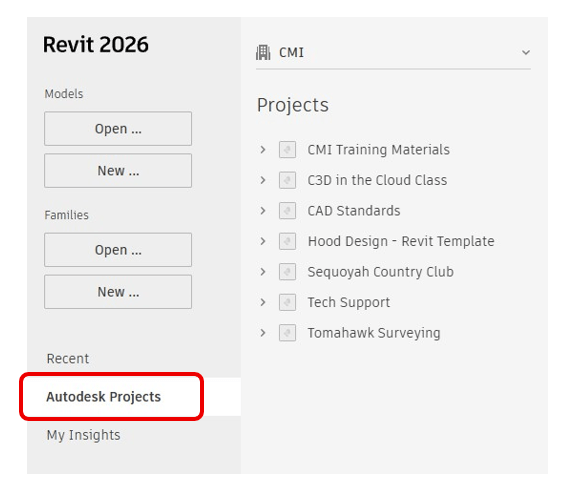
- Open Cloud Projects: Users should open projects from “Autodesk Projects” on their Revit home screen.
Synchronizing with Central
Regular synchronization is key to cloud worksharing:
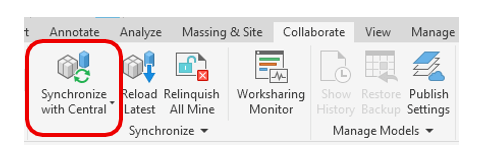
- Process: On the Collaborate Tab, click “Synchronize with Central,” then “Synchronize Now.” This action performs four crucial steps on your local computer:
- Reload latest
- Save to central
- Save to local
- Frequency: Make sure to sync regularly to keep your local work updated and contribute changes to the central model.
Publishing to the Cloud
Publishing updates the main cloud model and its version number, making the latest changes visible to others.
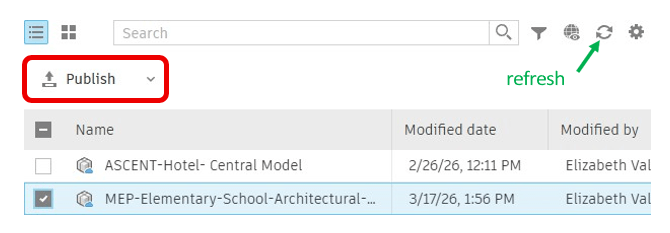
- Workflow: From the Revit Home Page, navigate to Autodesk Projects, browse, select your files, and click “Publish.”
- Frequency: One team member can be assigned this task daily, weekly, or as project needs dictate.
- Troubleshooting: If the “Publish” button appears unresponsive, click the refresh icon in the top right corner of the Revit Home Page before attempting to publish again.
Embracing Autodesk design software through the cloud isn’t just about moving files; it’s about transforming how you collaborate, manage projects, and ultimately, design. The ability to work flexibly, securely, and with constant access to the latest project data empowers teams to deliver their best work, no matter where they are.