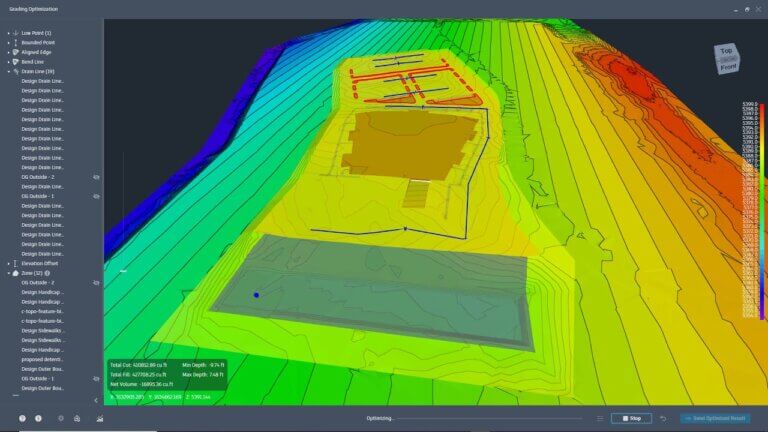
Stormwater Design: Overview of InfoDrainage 2027
Designing efficient drainage systems is a cornerstone of modern civil engineering. With the release of InfoDrainage 2027, engineers have a more powerful, dynamic toolkit to bridge the gap between hydraulic modeling and CAD reality.
Whether you are migrating from Civil 3D or building a system from scratch, here is a breakdown of how to navigate the InfoDrainage environment and optimize your workflow.
1. Getting Started: The Environment
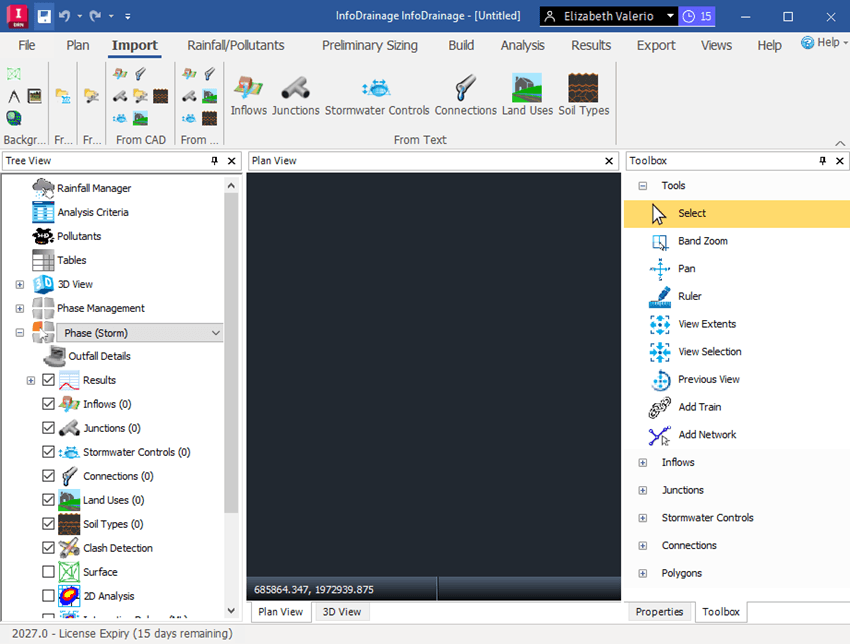
The InfoDrainage interface is designed for speed and clarity. Key areas you’ll spend your time in include:
- Ribbon Tabs: Your central navigation for planning, analysis, and exporting.
- Tree View: Located on the left, this is your project HQ where you can manage every site element without hunting through menus.
- Toolbox: On the right, this contains the “building blocks” of your design—simply click and drag items like manholes or ponds directly onto your plan.
- Object Templates: These automate your design by setting default sizes and shapes for junctions, manholes, and stormwater controls (SWC).
2. Setting the Foundation: Background Data
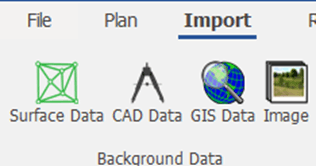
Before you draw a single pipe, you need a digital canvas. InfoDrainage supports a wide range of data types to ensure your design matches the real-world site conditions:
- Surface Data: Import LandXML files from Civil 3D or use AutoCAD points and breaklines.
- CAD & GIS Data: Reference .dwg files or import ESRI shapefiles and GeoDatabases to provide context for your network.
- Imagery: Use ortho-photogrammetry with world files to place your project in its exact geographic location.
3. The Power of Integration: Civil 3D to InfoDrainage
One of the software’s strongest features is its “round-trip” capability with AutoCAD Civil 3D.
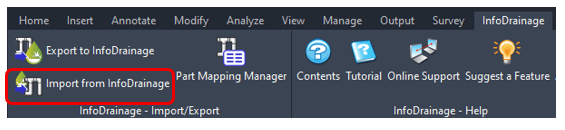
- Export: Use the Part Mapping Manager to seamlessly transfer Civil 3D parts into InfoDrainage objects. Then click Export to InfoDrainage.

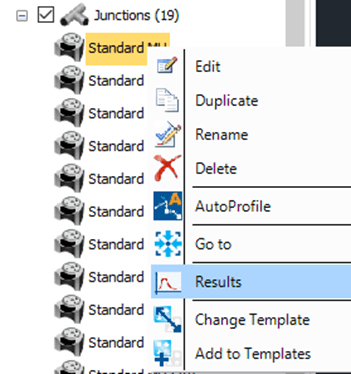
- Refine: Once imported to InfoDrainage, you can use the Change Template feature to convert standard manholes into specialized stormwater controls.
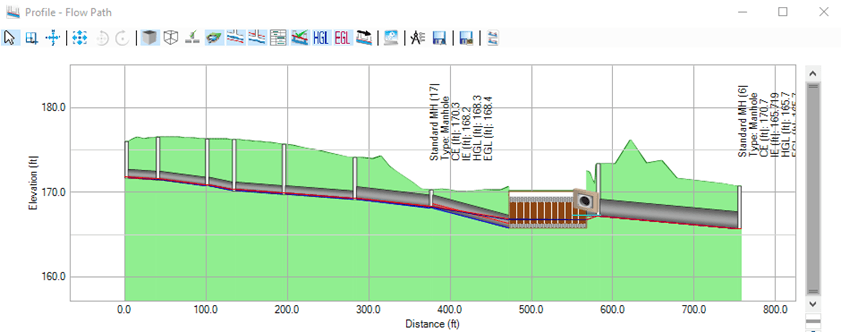
- Visualize: From the Results Tab > Profile panel > Click Show Profile > Flow Path. This tool prompts you to draw a path from the most upstream junction to the outlet. Then you can right-click to Show Profile and see your system in Profile view.
4. Applying Stress: The Rainfall Manager
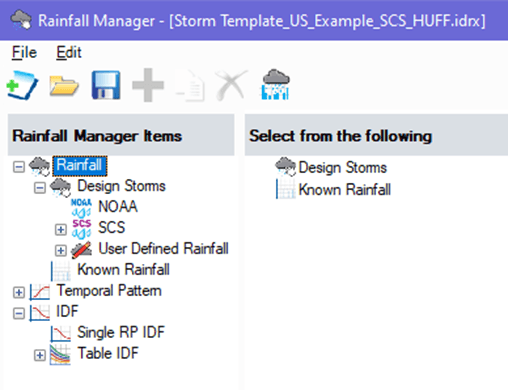
Your design is only as good as the storm it can handle. On the Rainfall/Pollutants tab, you can find the Rainfall Manager. It is the “stress test” hub where you define meteorological data.
- Standard Methods: Supports NOAA (Atlas 14), SCS (synthetic 24-hour curves), and User Defined Rainfall.
- IDF Curves: Essential for the Rational Method, these curves help size pipes and channels based on intensity and duration.
5. Preliminary Sizing & Analysis
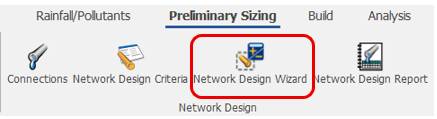
Don’t guess your pipe sizes—let the Network Design Wizard do the heavy lifting.
- Automation: The wizard can automatically size pipe diameters while locking your preferred invert elevations and slopes.
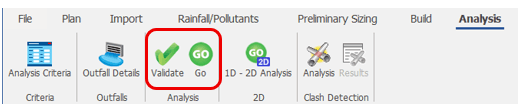
- Validation: Before running a full simulation, use the Validate tool to catch disconnected items or elevation discrepancies.
- The “Go” Button: Once validated, click GO to run a full hydraulic analysis. You’ll receive a Stormwater Controls Summary highlighting max depths, inflows, and any potential flooding.
6. Exporting and Updating
A design is only useful if it can be built. InfoDrainage offers robust export options:
- To CAD: Generate native .dwg files of your plan or profile, complete with Hydraulic Grade Lines (HGL) to visualize system pressure.
- To GIS: Export the entire phase or individual components as shapefiles, mapping specific attributes like inflow properties.

- Back to Civil 3D: Instead of just exporting lines, use the Import from InfoDrainage ribbon tab in Civil 3D to update your dynamic model with the finalized hydraulic data.
Pro-Tip: Keyboard Shortcuts
Speed up your workflow with these essentials:
- F4: Properties
- F5: Results
- Ctrl+Z: Undo (But be careful—setting high undo limits can slow down processing!)
Ready to start your next project?
InfoDrainage 2027 is supported on 64-bit Windows 10 and 11, ensuring you have the stability needed for complex modeling.