
Esri ArcGIS Base Maps in Civil 3D 2025
Autodesk has introduced Esri ArcGIS Base Maps as a new feature in Civil 3D 2025, replacing the previously used Microsoft BING maps for aerial imagery. This powerful addition offers civil engineers and designers access to high-quality, up-to-date geographic information directly within their preferred design environment. In this comprehensive guide, we’ll walk you through how to harness the full potential of this new feature, ensuring your Civil 3D projects benefit from the most accurate and detailed base map data available.
Setting Up Your Civil 3D Project
Before we begin working with ArcGIS Base Maps, it’s crucial to properly configure your drawing settings. This initial step ensures that your project is correctly georeferenced and aligned with real-world coordinates.
- Navigate to Toolspace > Settings tab
- Right-click on the Drawing name
- Select “Edit Drawing Settings”
- Go to the “Units and Zone” Tab
Toolspace > Settings tab > R-Click Drawing name > Edit Drawings Settings > Units and Zone TabHere, you’ll need to set three critical parameters:
- Drawing Units: Choose the appropriate unit system for your project (e.g., feet, meters)
- Zone Category: Select the geographic zone your project falls within
- Coordinate System: Choose the specific coordinate system for your project location

Taking the time to accurately set these parameters will pay dividends throughout your project, ensuring that all imported data and created objects align correctly with real-world coordinates.
Setting Your Location
After your coordinate system is set up, you can either use the Geolocation tab or Insert tab of the ribbon to edit/set your project location. (See the Set Location Button in screen shot below.) In the Set Location drop-down menu, you will see 3 options. Choose “From Esri Maps”.

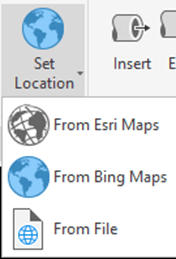
A window will pop up prompting you to type an address or general location for your project. After searching for an address, you can use the “drop marker here” button to pinpoint your project location. If your project does not have a specific address, you can zoom and pan in the map preview. Then right click on the map location you would like to pinpoint and choose “drop marker here” or “move marker here”.

When you click next, you will be asked to confirm your coordinate system for your project. After this step, the command line will ask you to choose a location for your project in model space. You can either click a location in model space or type coordinates at the command line. A huge benefit to using Civil 3D over AutoCAD is that during this step, Civil 3D will give you the correct coordinates for your project at the command line. AutoCAD will show 0,0,0 at the command line. This is because Civil 3D can find accurate coordinate data based off your Drawings Settings. In Civil 3D, I simply press enter to use the preset coordinates. The command line will also ask for the north direction which is usually set to 90 degrees.
Navigating and Customizing Your ArcGIS Base Map
After importing your base map, you might need to adjust your view to locate your project area:
- Zoom out to find a red dot, which indicates your project location
- If you don’t see a red dot, ensure that GEOMARKERVISIBILITY is set to 1
- Once you’ve found the red dot, zoom back in to view your map in detail
The Geolocation Tab on the ribbon offers an “Esri Imagery” dropdown button, providing various options for how your map appears in model space. Experiment with these options to find the best view for your project needs.

Capturing and Refining Your Project Area
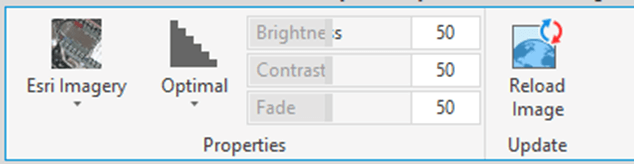
Once you get your map looking the way you want, you should then use the “Capture Area” button. This button allows you to save the project area as an image in model space. When capturing the image, the command line will say “specify first corner” prompting you to create a rectangular window around your project area. Capturing the image not only allows you to print this map, but also allows you to edit the brightness, contrast and fade of the image. To adjust image settings, select the image, and use buttons in the ribbon. If you would like to turn off the larger portion of the map, you can choose “Map Off” from the Esri Imagery dropdown button.
Advanced Tips and Tricks
- Use the captured map image as a backdrop for your design work, adjusting its transparency to balance visibility with your design elements
- Combine the ArcGIS Base Map with other data sources, such as survey points or GIS shapefiles, for a more comprehensive project overview
- Experiment with different map styles (e.g., topographic, street map) to find the best fit for your project presentation needs
- Remember to recapture your map area if you make significant changes to your project extents or if updated imagery becomes available
Conclusion
The integration of Esri ArcGIS Base Maps into Civil 3D 2025 represents a significant advancement in how civil engineers and designers can interact with geographic data. By following this guide, you’ll be well-equipped to leverage this powerful new feature, enhancing the accuracy and visual appeal of your Civil 3D projects.
Remember, the key to mastering this tool lies in practice and experimentation. Don’t hesitate to explore different settings and options to find the workflow that best suits your project needs. With ArcGIS Base Maps at your fingertips, you’re now better equipped than ever to create detailed, accurate, and visually compelling civil engineering designs.
Enhance Your Civil 3D Skills with CAD Masters
To fully leverage the power of Civil 3D 2025 and features like Esri ArcGIS Base Maps, consider enhancing your skills with professional training. CAD Masters offers comprehensive Civil 3D training classes tailored to various skill levels and specific needs. Whether you prefer the convenience of online learning or the hands-on experience of in-person classes, CAD Masters has you covered. With training locations in Walnut Creek and Sacramento, CA, as well as flexible online options, you can choose the learning environment that best suits your schedule and preferences. Our expert instructors will guide you through the intricacies of Civil 3D, helping you master tools like ArcGIS Base Maps and much more. Invest in your professional development and take your Civil 3D skills to the next level with CAD Masters.