
Civil 3D Gravity Pipes Cheat Sheet
In this blog post, we’ll walk you through step-by-step instructions to master the editing process specifically for gravity pipes in AutoCAD Civil 3D, from understanding and editing feature settings to customizing the part list with appropriate families and sizes. You’ll also discover how to modify the rule set for pipe structures and gain insights into essential rules. Plus, we’ll explore methods for drawing or converting the pipe run and how to add labels to your gravity pipe network plans.
We’ll also provide valuable tips and tricks, such as utilizing grips for editing in both plan and profile views. We’ll cover leveraging part properties for precise modifications and introduce the Edit Pipe Network Vista option for a comprehensive editing experience. Additionally, you’ll learn about advanced features like Project Explorer, which enables enhanced reporting and editing of gravity pipe networks.
Getting Started with Gravity Pipes
Edit the feature settings for the pipe network.
1. Under the settings tab, right-click on “Pipe Network” and then select “Edit Feature Settings”.


2. Right-click the part list you wish to use and select the edit button.
Add the appropriate families and part sizes to use the available parts for the pipe network.


3. Right-click an example rule set, and then select edit (For both pipes and structures.)
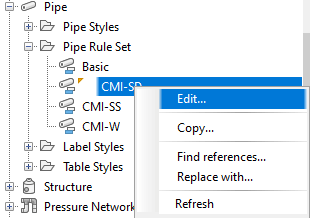
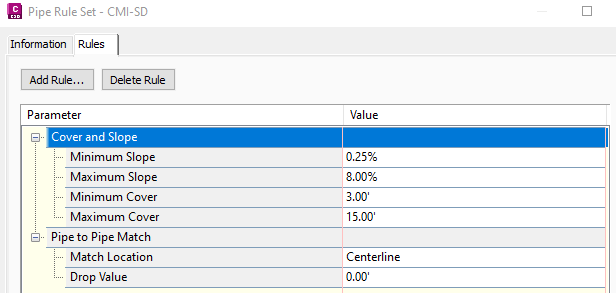
Add and delete the desired rules and change the order to determine how they react.

Note:
Always add the “Set Sump Depth” rule whether you have a sump or not for the project. If this rule is not present, the program will add a 2’ sump by default.
Create Pipe Network
This next step is to either draw the pipe run or convert a polyline to a pipe network. You should make a note to realize that structures and pipes can only be connected if they are in the same pipe network. Therefore, you can start with one polyline, but then you need to edit the network to add more objects to the pipe network. Also note that you can merge networks later if you want different pipe networks to join.
A. Home ribbon tab > Pipe Network > Create Pipe Network from Object
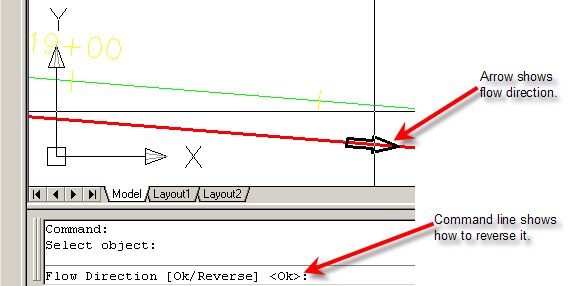

B. When editing a pipe network or creating a pipe network by “Home” ribbon tab > Pipe Network > Create Pipe Network from Object
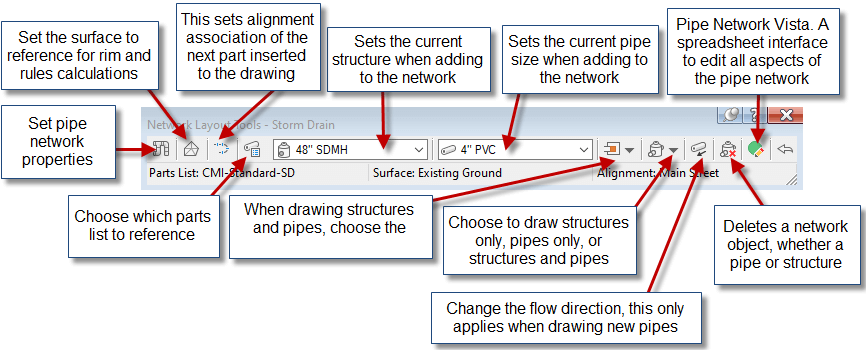
4. “Modify” ribbon tab > Pipe Network > Network Tools > Draw Parts in Profile
Either select the entire pipe network or select the parts you wish to show in the profile view. You can also click on a part, then right-click and choose add part to profile view. This is also available in the right-click menu after selecting part(s). Alternatively, use the Pipe Network tab of the Profile View Properties to turn pipes on and off.
5. “Pipe Network” ribbon tab > Add Labels ... or "Home" tab > Add Labels
Choose either Entire Network Plan, Entire Network Profile, Single Part Plan, or Single Part Profile. You may also click on a part, then right-click and choose add label.
Different Methods of Editing a Pipe Network
1. Using grips
Plan View
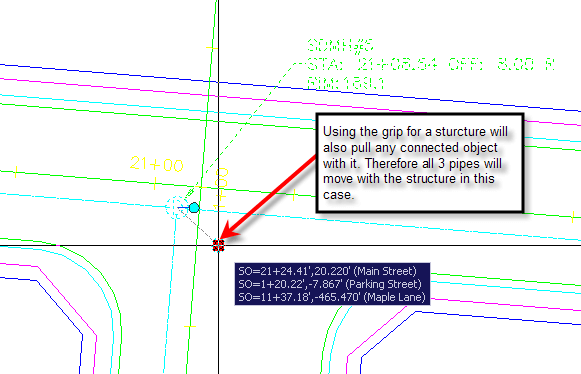
Hot gripping structures will pull all objects that are connected to it.
Profile View
You can hot grip the invert, centerline, or crown of a pipe. You can also multi-hot-grip grips by holding down shift while selecting the grip.

2. Using Part Properties – One part at a time
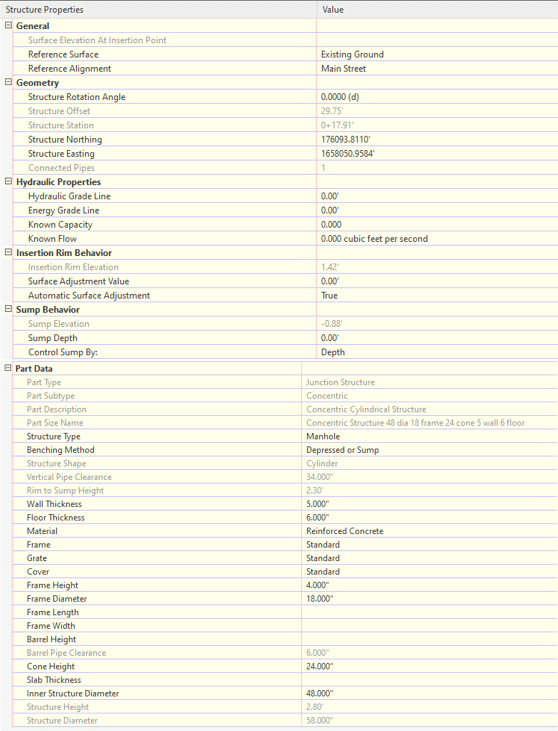
Click on a structure, right-click, and then choose Structure Properties.

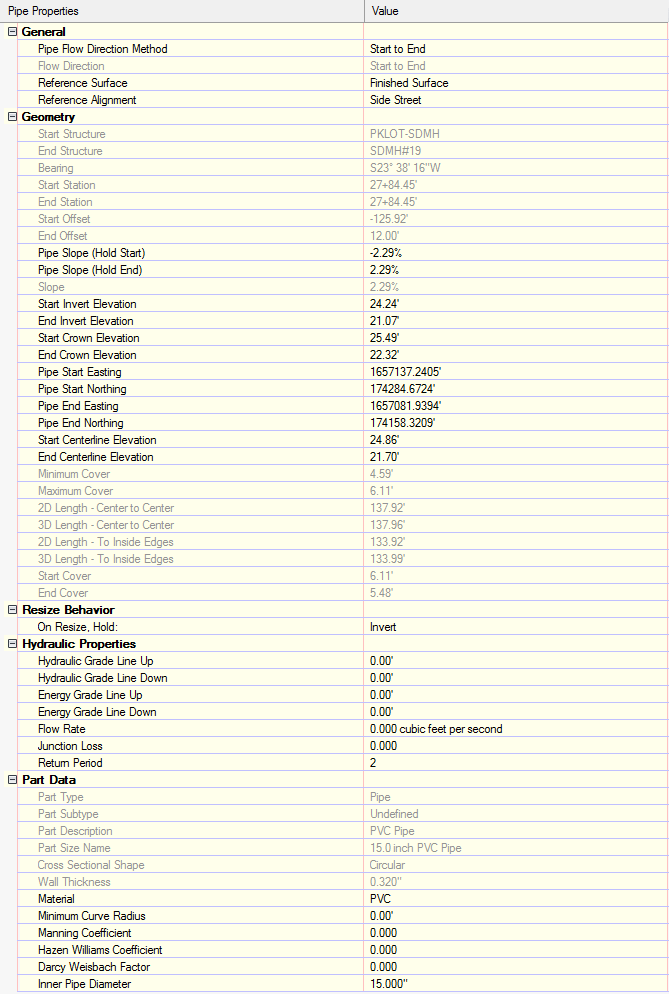
Click on a pipe, then right-click and choose Pipe Properties.

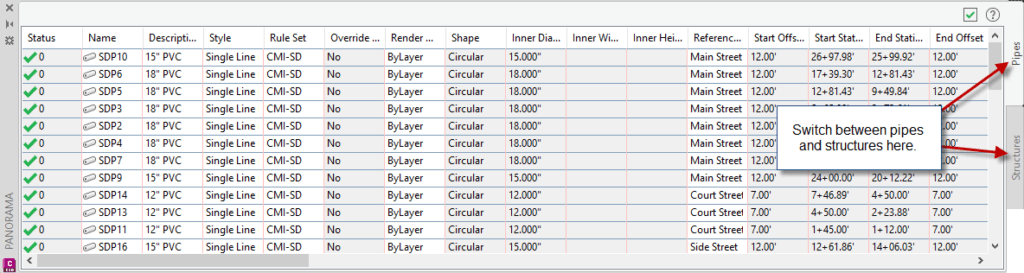
3. Using the Edit Pipe Network Vista
4. Other Tips & Tricks
- To change a manhole or pipe to different part, simply select the part, right-click and select Swap Part.
- To change a pipe network globally you can change the pipe or structure rules, and then use the command “Pipe Network” ribbon tab > Apply Rules to set the rules to the desired parts.
- Renaming and renumbering pipes and structures can be accomplished by running the command “Pipe Network” ribbon tab > Rename Parts.
- Use the Project Explorer to make batch changes to the pipe network. For example, multiple “Swap Part” and change slopes for multiple pipes. (https://thecadmasters.com/project-explorer-for-civil-3d/)

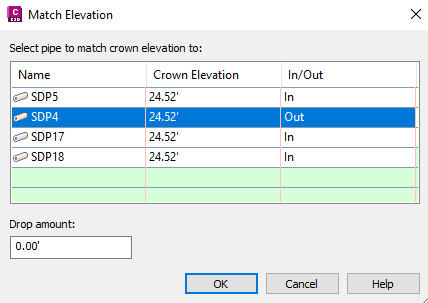
- With multiple pipes going in and out of a structure, you match the elevation of one of the pipes. In structure properties, go to the Connected Pipes tab, highlight all the pipes you wish to modify and then right-click and choose the desired option. Highlight the desired pipe to match and choose the drop amount.

If you like this guide or find yourself wanting more detail, our Civil 3D Advanced Pipe Modeling course offers comprehensive instruction with industry experts and hands-on practice using real-world examples.
