Maximizing Your CAD Workstation’s Performance
Selecting Components
CPU
When selecting a CPU for your Autodesk CAD workstation, it’s crucial to prioritize single-core speed, as most functions in AutoCAD, Civil 3D, and Revit are single-threaded. The Intel I9 14900K and I7 14700K are currently top performers in single-threaded benchmarks, making them excellent choices for the heart of your workstation.
Cooling
To ensure your CPU maintains optimal performance, it’s essential to prevent overheating, which can cause automatic throttling (slowing) of the processor to maintain a safe temperature. Most gaming cases provide adequate airflow, with the Fractal Torrent or Torrent Compact being excellent examples. For I9 CPUs, air cooling can be a reliable alternative to liquid cooling, but it requires a specialized CPU cooler like those made by Noctua or similar brands.
Motherboard, RAM & Hard Drive
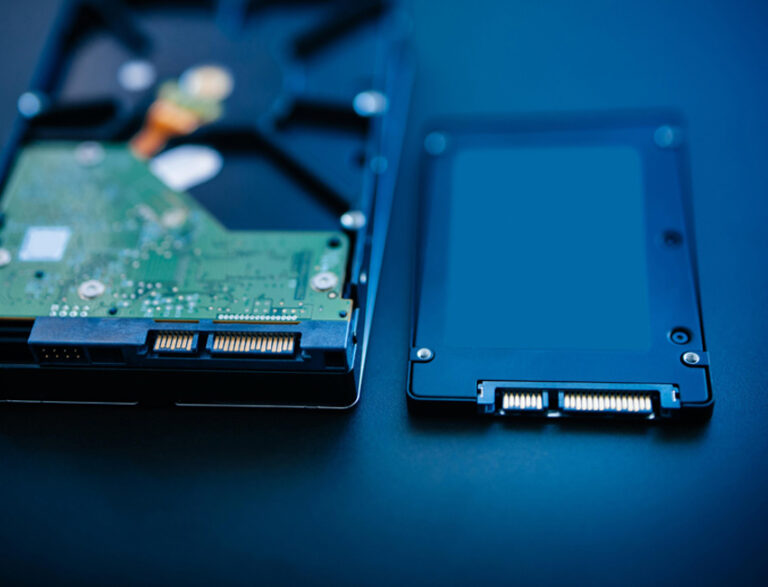
To maximize your workstation’s performance, invest in a high-quality motherboard, RAM, and an NVME M.2 Solid State Drive (SSD) for the fastest read/write speeds. We recommend ASUS motherboards and Samsung components for both RAM and SSDs, but other brands of comparable quality will also suffice.
When choosing RAM, select the highest speed supported by your CPU and motherboard specifications. To ensure stability, avoid using XMP (memory overclocking), even if it is the manufacturer’s default setting. Most manufacturers enable XMP by default, but you can easily turn it off in the BIOS. Later in this guide, we will provide steps to help you check your RAM for errors, ensuring optimal performance and reliability.
Video Card (GPU)
When selecting a GPU for your Autodesk CAD workstation, opt for an NVIDIA RTX GPU with an Autodesk Certified Driver to ensure stability and compatibility with Autodesk software. Certified drivers guarantee that hardware acceleration remains active, allowing you to fully leverage your GPU’s capabilities. While GeForce NVIDIA RTX GPUs can be considered for demanding visual tasks beyond traditional CAD work, such as point clouds and rendering, they are not necessary for most Autodesk functions and currently lack certified drivers.
Let CAD Masters Do the Work For You
Our hardware experts can take care of all these optimizations for you, ensuring your CAD workstation is tailored for peak performance in engineering work. With our pre-purchase consultation and post-purchase support, competitive pricing, and top-tier components, you can trust us to deliver a workstation that meets your specific needs.
Our team will load your AutoCAD, Revit, or Civil 3D software, so you can start working as soon as you receive your workstation. Plus, with our one-year parts and labor warranty, you can have peace of mind knowing that we stand behind our products and services.
Memory Testing, Clean Windows Installation & Debloat with Bloatynosy
In this part of this guide, we’ll focus on three critical aspects of optimization: memory testing, Windows installation, and system debloating. By following our advice, you can ensure that your workstation is running at its best, with fewer errors, a streamlined operating system, and minimal unnecessary features and services. And if you purchase a workstation through CAD Masters, you can rest assured that it will come pre-configured with all of these optimizations, so you can start working at peak efficiency right out of the box.
Testing Your RAM for Optimal Performance
To ensure your workstation’s RAM is functioning correctly and without errors, it’s crucial to perform a thorough memory test. We recommend running the test overnight to allow sufficient time for any potential issues to surface. Memtest86 is a reliable and widely-used tool for RAM testing, and it’s available for free.
To get started, visit https://www.memtest86.com/ and navigate to the download page. Look for the “Memtest86 Free” version and download it to your computer. Next, insert a USB drive into your computer and run the imageUSB.exe file that comes with the Memtest86 download.
Once the imageUSB program is running, select your USB drive from the list of available devices and click on the “Write” button located at the bottom left-hand side of the window. This process will create a bootable USB drive with Memtest86, allowing you to run the memory test directly from the USB.
To begin the test, restart your computer and boot from the USB drive. This will launch Memtest86, and the memory test will start automatically. Allow the test to run overnight, and in the morning, check the results for any reported errors. A successful test should display zero errors, indicating that your RAM is functioning correctly and is stable enough for demanding Autodesk CAD applications.
Optimizing Windows 11 Installation
When installing Windows 11 on your new workstation, it’s important to follow a few key steps to ensure optimal performance and a streamlined setup process. To begin, make sure your ethernet cord is unplugged during the initial installation or when turning on your new computer for the first time.
Once the installation is complete, or when you power on your new workstation, you’ll be prompted with the question, “Is this the right country or region?”

At this point, press Shift + F10 to open the Command Prompt (CMD). Type in “OOBE\BypassNRO” and press Enter. This command will restart your computer and bypass the Windows constraint that requires you to create a Microsoft account, allowing you to proceed with a local account instead.

After your workstation restarts, continue with the Windows 11 setup process until you reach the “Let’s Connect you to a network” screen. Instead of connecting to a network, navigate to the bottom right-hand side of the screen and click on the “I don’t have internet” button. Then, select “Continue with limited setup” to bypass the Microsoft account creation and create a local account.

Once you’ve completed the post-installation setup, plug in your ethernet cord and connect to the internet. When prompted, specify whether your network is for home or work. To ensure your Windows 11 installation is up to date, open the Start menu, type "Settings" in the search bar, and press Enter. Navigate to "Windows Updates" and check for any available updates or patches, installing them as necessary.
To optimize your workstation’s performance for demanding CAD tasks, it’s essential to enable the High Performance power plan. Open the Control Panel, navigate to Hardware and Sound, and click on Power Options. Click the dropdown menu for "Show Additional Plans" and select "High Performance." This setting will ensure that your workstation is prioritizing performance over power-saving features, which is crucial for running Autodesk CAD applications smoothly.
Debloat Windows with Bloatynosy
To further optimize your Windows 11 installation and ensure the best possible performance for your CAD workstation, we recommend using a debloating tool like Bloatynosy or similar software. These tools allow you to easily disable or remove unnecessary features, services, and settings that can slow down your system or consume valuable resources.
To get started, download Bloatynosy. Once the download is complete, run the Bloatynosy program and navigate through the various categories and settings. Below, we’ve provided a list of settings that we typically recommend disabling to achieve optimal performance:


Browser
- Disable AI chat bar in Edge Browser
- Disable Google Chrome telemetry
Explorer
- Show hidden file name extensions
Desktop
- Disable snap assist
- Disable widgets
- Uninstall widgets feature
- Remove desktop stickers
Taskbar and Start Menu
- Hide search icon on taskbar
- Hide chat icon (Microsoft Teams) on taskbar
- Hide task view button on taskbar
- Hide most used apps in start menu
- Pin more apps to start menu
System
- Enable Full context menus in Windows 11
- Remove Windows 11 system requirements watermark
- Disable Microsoft Teams on startup
- Remove fax printer
- Remove XPS documents writer
Gaming
- Disable Game DVR feature
- Disable Power throttling
- Adjust visual effects for best performance
Privacy
- Disable Diagnostic data
- Disable connected user experiences and telemetry
- Disable Compatibility telemetry
- Disable location tracking
- Disable advertising ID for relevant ads
- Disable automatic installation of apps
- Disable Windows tips
- Disable tailored experiences
- Disable apps running in background
Installing Your Autodesk Software
With your Windows 11 workstation optimized and debloated, you’re ready to install your Autodesk CAD software. Simply log in to your account at http://accounts.autodesk.com, click on your profile icon in the top right corner, and select “Products and Services.” Find the software you need, click “Download,” and run the installer. Follow the prompts, launch the software, and sign in to activate your subscription. You’ll be ready to tackle your design projects in no time.
Trust CAD Masters for Your Optimized Autodesk Workstation
Our team of experts offers free pre-purchase consultations and post-purchase support via phone, email, or web meeting, ensuring you have the guidance you need to select the perfect workstation and troubleshoot any issues that may arise.
We pride ourselves on offering competitive pricing and top-tier components, with lead times of less than 2 weeks. Our prices are often better than those of major brand computer manufacturers for the same components, and we include a one-year parts and labor warranty for your peace of mind.
We go above and beyond to ensure your workstation is optimized for peak performance, extensively testing our case and cooling configurations to prevent throttling of your CPU or GPU during heavy workloads. Our expert wire management ensures a clean, efficient setup, and we can even pre-install your Autodesk software so you can hit the ground running as soon as your workstation arrives.
Contact us today to schedule your free consultation and take the first step towards unleashing your full productivity potential.