
Working with Shared Parameters in Revit
In this blog I will take you through the steps of defining a shared parameter in Revit, using your new shared parameter, and loading the new parameter into your Revit project. For this tutorial we will create a phone family system with extensions as an example.
What is a Shared Parameter?
Shared parameters are definitions of parameters that you can add to families or projects. Shared parameter definitions are stored in a file independent of any family file or Revit project. This allows you to access the file from different families or projects. A shared parameter must be used for tags and schedules.
Custom parameters can be created for a project, and for any element or component category in the project. Parameters that you create display in the Properties palette or Type Properties dialog under the group you define and with the values you define.
Defining a Shared Parameter
- In your project, select a family to edit. (For this tutorial, we will call the family “Phone”)
- In the ribbon, click Edit Family.
- If a warning box appears, click Yes
- In the ribbon Manage Tab, click Shared Parameters

- In the Edit Shared Parameters dialog box, click Create and browse to where you would like to save your shared parameters file. (This is the location you will browse to when you want to retrieve any shared parameters in the future.)

- Enter a file name and click Save. (i.e. Shared Parameters file.txt)
- In the Edit Shared Parameters dialog box, under Groups, click New.
- In the New Parameter Group dialog box, enter a name for your Group. (For this tutorial we will call the group “Data Devices”)

- In the Edit Shared Parameters dialog box, under Parameters, click New.
- In the Parameter Properties dialog box, enter a unique name for your parameter. (We will use Phone Ext. for the purposes of the tutorial)
- Select “Common” from the Discipline drop-down list and “Text” from the Type drop-down list.

- You can create as many new parameters as you would like. When you are done adding parameters, click OK to close each dialog box.
Using a Shared Parameter
- First, let’s make sure we assign the correct Family Category for this example. In the family editor, on the create tab, click Family Category and Parameters.

- Put the previously created Phone Family into the “Data Devices” Category and then click OK.

- In the family types dialog box, click New Parameter.

- In the Parameter Properties dialog box, choose Shared Parameter. Then click Select. (If your new parameter doesn’t automatically show up, click edit and browse to your shared parameter file.)
- In the Shared Parameters dialog box, select the parameter group you created earlier, and then select the parameter that you would like to assign to this family type. (Ex. Group: Data Devices, Parameter: Phone Ext.)

- Click OK.
- Back in the Parameter Properties dialog box, under Parameter Data, set “Group Parameter Under” to “Other”, and select “Instance”.
Note: When you choose “instance”, this parameter will appear in the properties window for the selected family. You can assign a unique value for each instance of the family. When you choose “type”, this parameter will appear in the type properties window for this family. Every phone of the same type will have the same value for this parameter.
- Repeat this procedure for each parameter you want to add to this family.
- When you are done, save this family (might have to override old family or save to new location) and then load it into the project.
- Next, a prompt will appear. Choose “override existing family and it’s parameters”.
- When you select a phone and look at its properties, you should see the phone extension parameter listed under Other.

Loading New Parameters into a Project
To use your new parameter in a Tag or Schedule, you will have to load it into your project.
- On the Manage Tab, click Project Parameters.

- In the Project Parameters dialog box, click Add.
- In the Parameters Properties dialog box, under Parameter Type, choose the Shared Parameter option and click Select.

- Click OK to close each dialog box. Repeat this process for each new parameter.
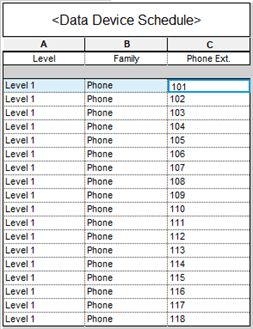
Now that your parameters have been loaded into the project, you can use them in tags or schedules!
Do you have any questions? Let us know how we can help! Comment below or Contact Us.
If you liked this tutorial, try our in-class or online Revit Training! Improve your Revit skills with regularly scheduled courses for Revit Architecture, Revit MEP, Revit Structure, and more. Additionally, you receive 3 months of award-winning CAD Masters support and access to our self-paced training materials.